
FSC International / Loa Dalgaard Worm
This user guide will walk you through each step of the process of voting for Statutory Requirements, from where to find and download the app, to how to cast and view your votes.
The voting exercise will take place via the FSC Online Voting App. You can access the app on your laptop, tablet, or mobile phone.
The app will be accessible in 3 ways: 1) web/browser app, 2) Android app and 3) iOS app. Members can log in with their Members’ Portal/Connect credentials or access it with their registered email address.
Please, check the steps below to find your preferred application and log-in method.
Access the web application or download it on your mobile or tablet
| WEB APPLICATION | ANDROID AND IOS |
| Check your inbox for the invitation email we sent and click on the button “Go to the FSC Online Voting App” | Scan the following QR-Code and select your app store 
If you are unable to scan the QR code, please see below: |
| Or open your preferred browser and go to: poll.fsc.org/voting | On your tablet or mobile device, open the app store of your choice, search for “FSC Online Voting App” and click on the icon to access the app.  |
| You can also use Google and search for “FSC Online Voting App” | Click on “Install” to download the app. |
Using your user credentials:
To log in, click on the “Sign in” button and use your Members’ Portal/FSC Connect user credentials*.
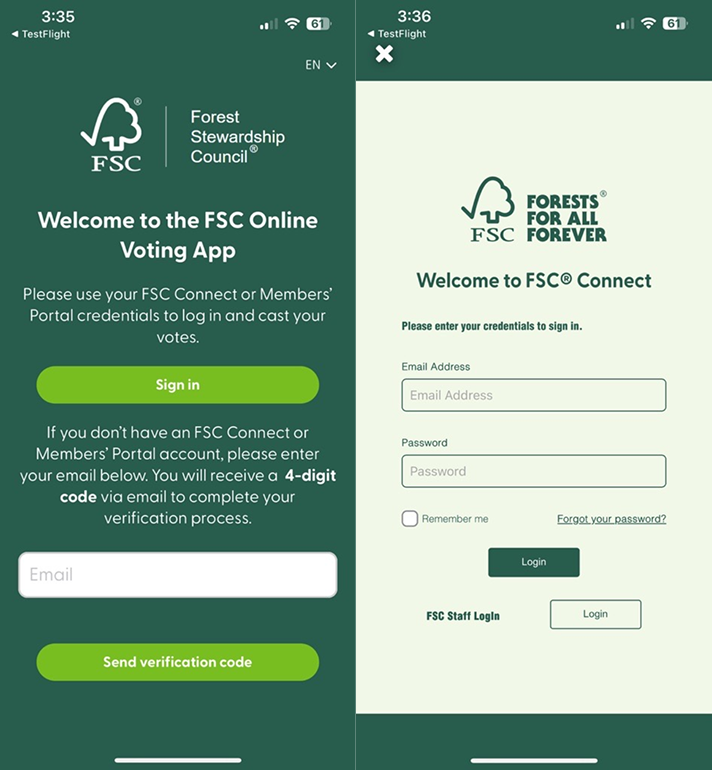
*If you don’t have or can't remember your credentials, please keep reading and follow the next steps.
Via email and verification code:
Enter your email and click on “Send verification code”.
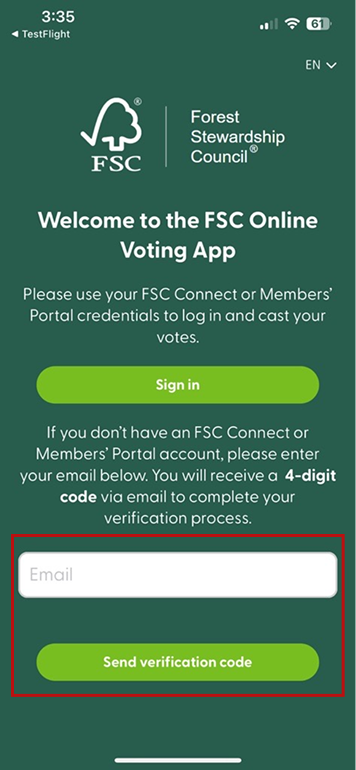
Go to your inbox and/or spam folder and locate the email. Use the 4-digit code* included in the email, enter it on the app and click “Sign in”.
* Please note that the verification code is only valid for 24 hours.

If you didn’t receive the email or are having issues verifying your account, please contact us at connect@fsc.org.
Open your preferred browser and go to poll.fsc.org/voting
After logging in, you will reach the FSC Online Voting App home screen. Go ahead and click on “Statutory Requirements”.

Click the "Open Statutory Requirements" option in the upper left corner to review the statutory documents.

Click on the blue document title link to view the PDF online or download it. A preview of the document will open. You can then choose whether to read it online or download it


After you have carefully read and reviewed the documents, select “Yes”, “No” or “Abstain”, lastly to cast your vote, click on “Submit”.

A pop-up window will appear to confirm your vote. Click on “Ok” to continue or on “Cancel” to get back and review or change your vote.

*Note: You can only vote once. Your vote will only count toward the result once you have submitted and confirmed the submission. Incomplete or unsubmitted selections will not be counted.
You can view submitted votes by clicking on “My Votes”.
You will receive an acknowledgement email when you submit your vote. You also have the option of requesting this acknowledgement and the summary of your votes again via email, click “Send me the record of my votes” located in the top right corner.

To change the language settings or view the data in your profile, click the gear icon in the bottom left corner.

You can view your profile data.

And change the language settings (available languages are English and Spanish)

Download the app from the App Store or Google Play and launch the app
After launching the app on your device and logging in, you will reach the FSC Online Voting App home screen. Go ahead and tap on “Statutory Requirements”.

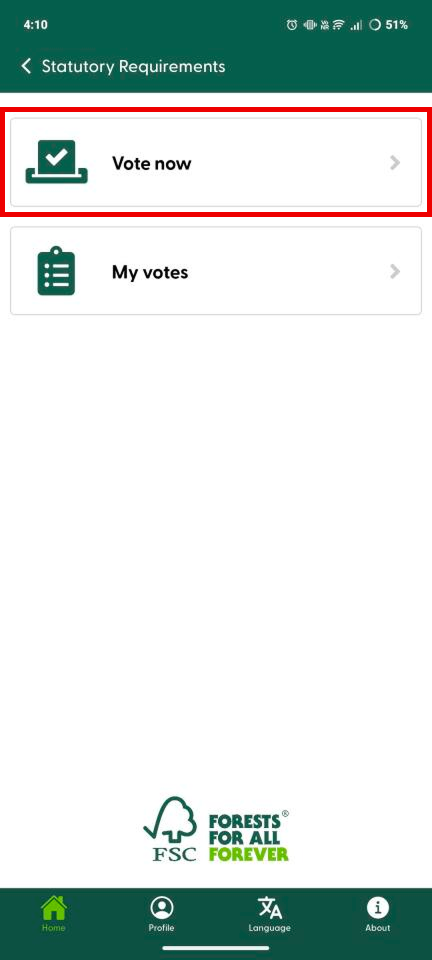
To start the voting process, click on the “Vote Now” button. This will take you to the first statutory requirements document.
Review the Statutory Documents

Click on the blue document title link to view the PDF online or download it. A preview of the document will open. You can then choose whether to read it online or download it.

Cast your Vote
After you have carefully read and reviewed the documents, select “Yes”, “No” or “Abstain”, lastly to cast your vote, click on “Submit”.

A confirmation window will pop up where you can submit by clicking “Ok” or “Cancel” to get back and review or change your vote.

Go back to the Statutory Requirements home screen and tap on “My Votes” to view your votes.
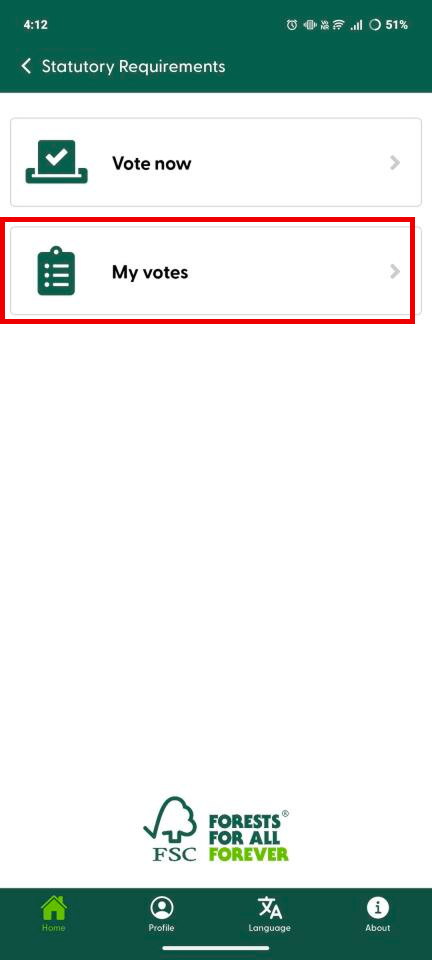
You will receive an acknowledgement email when you submit your vote. You also have the option of requesting this acknowledgement and the summary of your votes again via email, tap on the “send” icon n the upper right corner.

At the bottom of the screen tap on the profile icon to view your profile data.

To change the language settings, tap on the language icon (available languages are English, Spanish, and French).
